Some Context
One day after work, I was messaging with a friend (who’s extremely curious about data and it’s applications and a source of great ideas) and we were talking about scraping data from the internet and what tools were currently available and most easy to learn. R and Python sprang to mind and so we deep dived into some of the packages available in those languages. Then, funnily enough, the conversation turned to VBA and crude methods such as using sendkeys and how unreliable they were.
So, inspired as I usually am, I got home that night, turned my PC on and decided to scrap data from a couple of websites using R.
Please always be mindful of the legality of webscraping when you webscrape, useful link here.
My Workflow
- I would say the package widely used in R for webscraping is Rvest.
- As the link to the Rvest blog points out, using selectorgadget (a Chrome extension) makes finding the content you want to extract that much easier. It is possible without it but you would have to spend countless minutes trying to locate the CSS selector you are after.
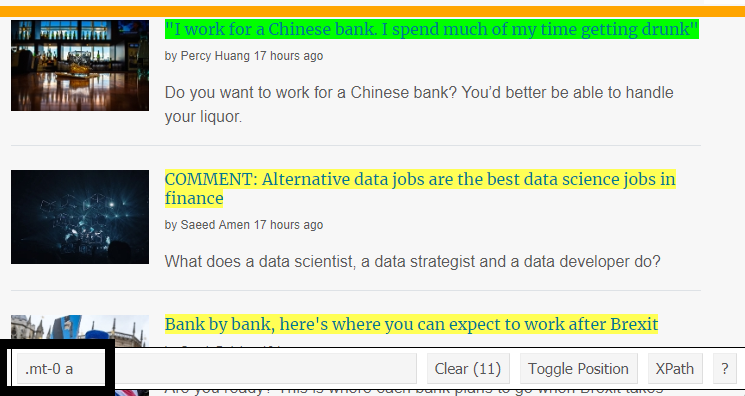
Click on the content you are after and the CSS selector will appear in the selectorgadget toolbar (bottom left).
- First step - read in the website into R.
efinancial_news <- read_html("https://news.efinancialcareers.com/hk-en/en/news-analysis")- Extract all the items that are linked to the CSS selector, for the articles this would be “.mt-0 a” as per the selectorgadget above. Note that html_node will pick up the first item where the CSS selector occurs whereas html_nodes will pick up all instances. We are after all the articles, so we use the latter. html_text() will then extract the text within each of the items (html nodes). The result is an array/vector of length n (depends on how many articles there are).
top_news <- efinancial_news %>%
  html_nodes(".mt-0 a") %>%
html_text()- If you also want to pick up the link address to the article, then use the html_attr function with “href” as the argument.
top_news_links <- efinancial_news %>%
  html_nodes(".mt-0 a") %>%
html_attr("href")- The blurb for the article which is linked to a different CSS selector can also be extracted using the same steps above.
top_news_blurb <- efinancial_news %>%
  html_nodes(".article-byline+ p") %>%
html_text()- Now, we have three arrays/vectors of the same size, one for the article header, the link to the article and the last one containing the blurb for the article.
- These can be combined into a single data frame and flattened out into a form that can fit into an email.
collated <- as.data.frame(cbind(top_news,top_news_links,top_news_blurb)) %>%
  mutate(mashed=paste0(top_news," - ",top_news_links," (Blurb: ",top_news_blurb,")"))

collated_flattened <- paste(collated$mashed,collapse="\n\n")- We can now send an email out via R. For details on how to set up your Gmail account to sync with R, please refer to the following link.
- To see the entire R code used, please refer here. If you want to send via Outlook, this is also available in the code.
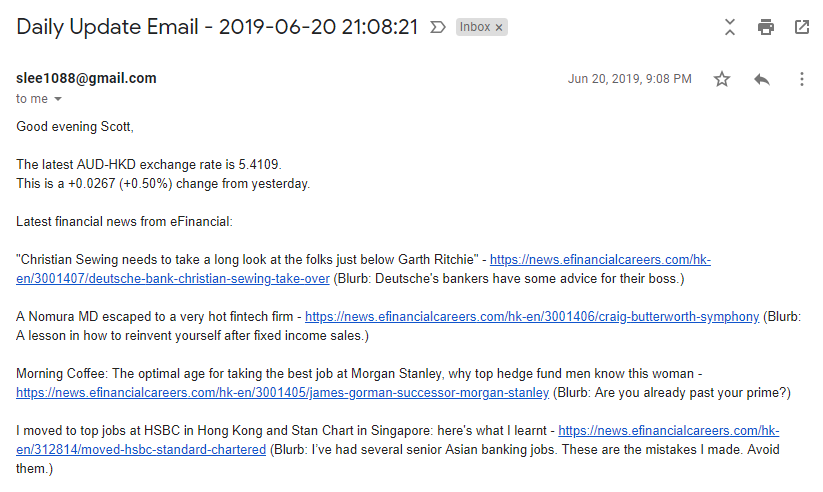
Screenshot of email received in Gmail.